

From a new quote to a finalised one
Build a quote, price it, check the margin, finalise it and send the customer document — and know which figures can no longer change.
Video coming soon.
The demo company is Meridian Cabling Supply; the customer is Halcyon Data Centres. Everything shown is invented.
1. Start the quote
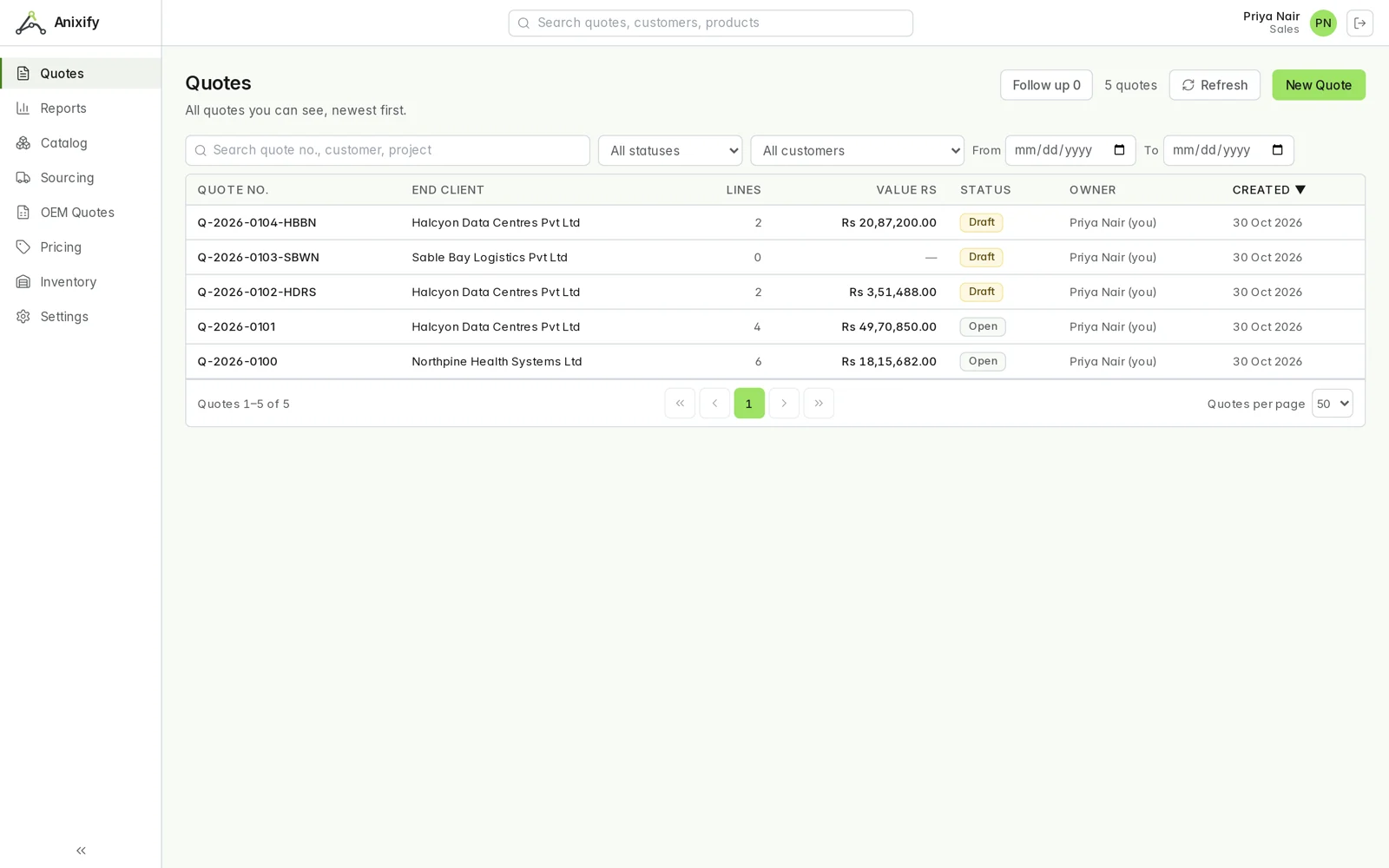
On Quotes, press New Quote, choose the customer and, where it applies, the ship-to site, and give it a project reference. The quote is a draft with a working reference until you finalise it.
2. Add the lines and price them
Press Add Materials, pick the parts and quantities, and give each line its cost: an OEM list price (the rate card supplies the discount — see Price a line from your rate card) or a typed net cost. Press Update prices. Sell price, line total and margin come from the pricing engine; nothing on the screen is estimated.
Check the GP % in the header. If your company has set an approval limit and the quote is below it, a Sales user is asked to request an Admin's approval instead of finalising.
3. Imported goods: landed cost
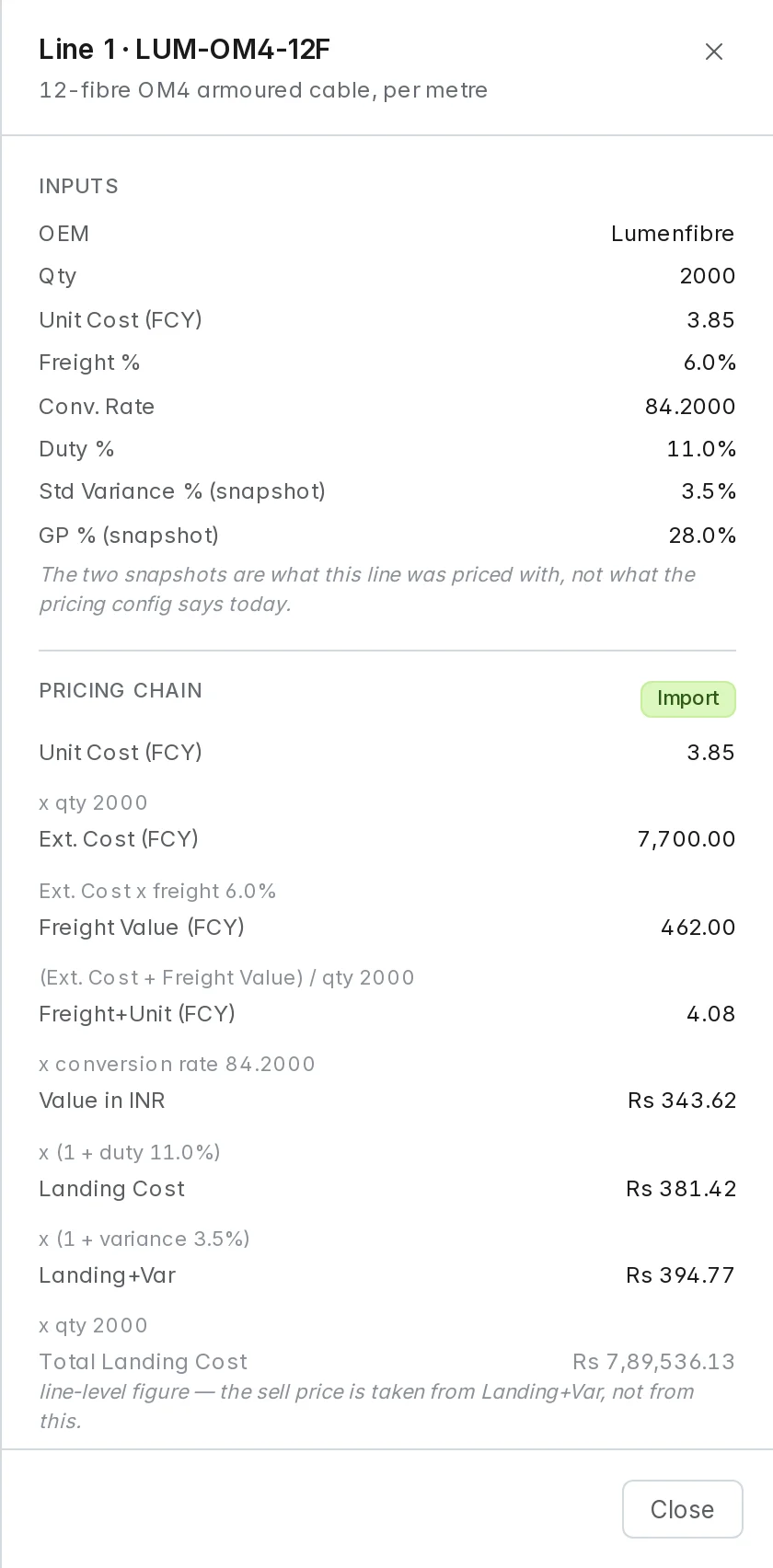
For goods bought in another currency, switch the quote to Import and choose the supplier currency. Enter the supplier price, the freight percentage and the HSN code on each line. The exchange rate comes from your published schedule and the duty from your duty schedule; the explanation shows the landed cost the sell price is built on.
4. Finalise
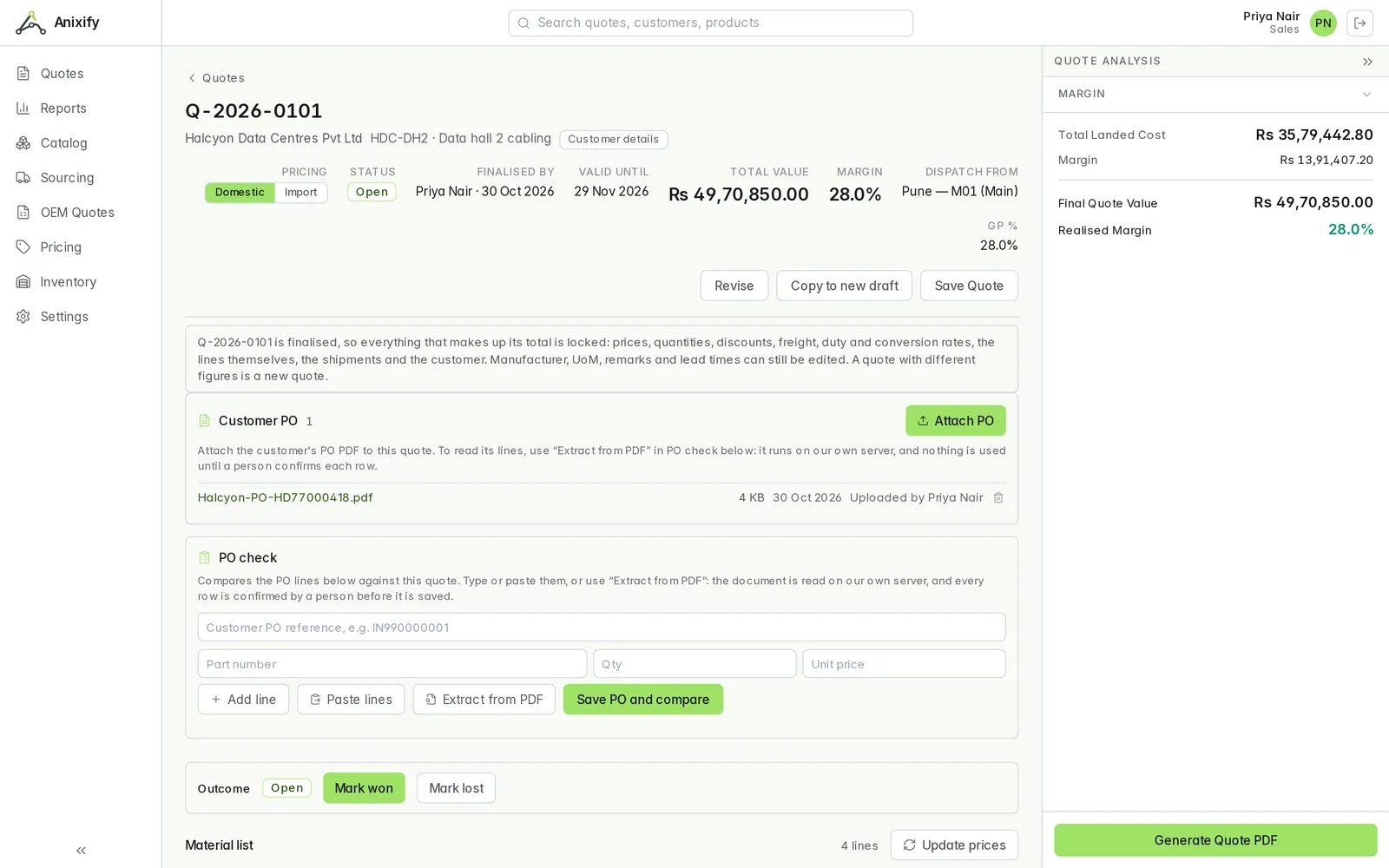
Press Finalise quote. Anixify asks you to confirm, then issues the next number from your quote sequence and locks everything that makes up the total: prices, quantities, discounts, freight, duty and conversion rates, the lines and the customer. Tax is frozen with it. Changing a rate or a setting later never restates this quote. A quote with different figures is a new quote — use Revise or Copy to new draft.
5. The customer document
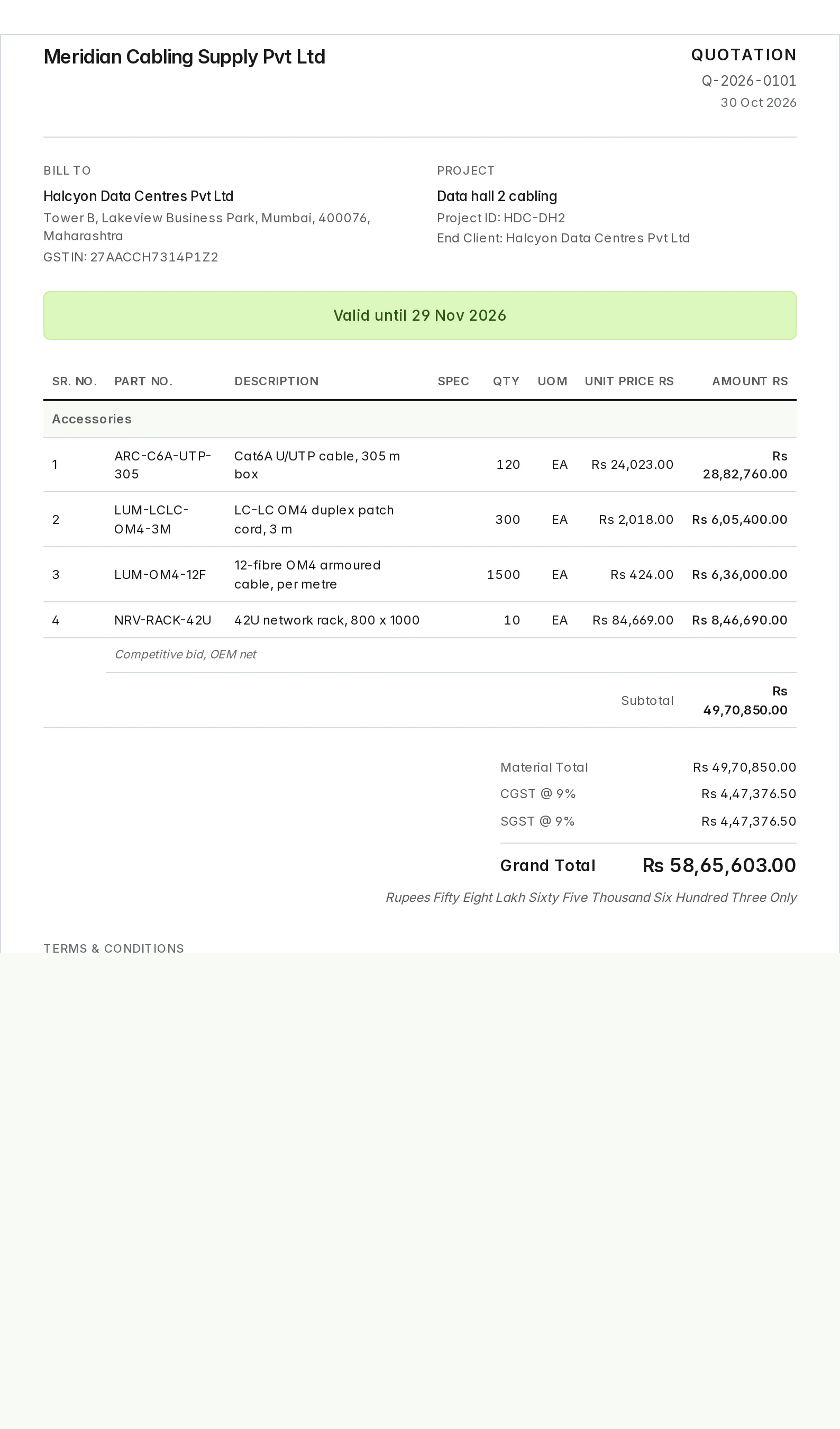
Press Generate Quote PDF. The document carries the sell prices, quantities, totals and tax — never the cost, the discount, freight, duty or your margin.
Updated 2026-10-30